UPDATE 1/13/2025: Thanks to a very helpful comment, I was able to remove the need for a manual login during this process.
This is the third in a series of posts about Jamf Setup Manager. Read the first post to learn more about our decision to use it as our preferred tool for provisioning Macs.
Automating the provisioning of a Mac mini for use with Zoom Rooms is our most complex process as it has a number of limitations.
- When Zoom Rooms installs it checks that:
- Autologin is enabled
- The autologin user exists
- The autologin user is logged in
- Logins conducted by automatic login do not grant a Secure Token or cause a Bootstrap Token to be escrowed
- Because the macOS user interface is very bright when displayed on large TVs, we want to enable Dark Mode. Enabling Dark Mode while the user in question is logged in requires sending Apple Events to System Events, which can trigger warnings. It is simpler to configure Dark Mode while the user is logged out.

These limitations create dependencies. The autologin user account must be created and logged in manually. Then, autologin can be enabled. Zoom Rooms can then install without interruption.
Bootstrapping
Like our server process, building Zoom Rooms begins before Automated Device Enrollment, Jamf Pro, or Jamf Setup Manager enter the picture. Macs ship from Apple with productivity software preinstalled: Keynote, Numbers, Pages, iMovie, and GarageBand. When using a computer for one specific purpose, we want a minimal amount of software to run and maintain.
To bootstrap our provisioning process, we either restore the Mac with an IPSW file in DFU mode, if it’s just shipped from Apple; or send a wipe command from Jamf Pro, if it’s an existing Mac in our fleet.
Enrollment
Again, we want to take advantage of Automated Device Enrollment and Auto Advance so these Mac minis are in Apple Business Manager and assigned to our production Jamf Pro Cloud instance.
In Jamf Pro, the Macs are scoped to a PreStage Enrollment called Zoom Rooms. It has the following characteristics:
- The MDM profile is mandatory and cannot be removed
- Activation Lock is disabled
- Auto Advance is enabled
- All options in Setup Assistant are disabled
- A managed local administrator account is created. (This will be deleted later after a Jamf Management Framework LAPS account is created.)
- Computers are assigned to an existing Zoom Rooms user in our directory
- An enrollment package containing branded images is assigned
Jamf Setup Manager won’t be installed until a user is logged in.
Smart group
Computers enrolled in the above PreStage are added to a smart group. We created a group called ALL- Zoom Rooms with this criterion:

The group is used in dozens of places in our Jamf Pro instance. Often, this to exclude Zoom Rooms Macs from regular software policies and configuration profiles.
Provisioning Part A
A Jamf Pro policy is triggered by the enrollmentComplete trigger. It is scoped to the above smart group. It has a script payload that performs the following:
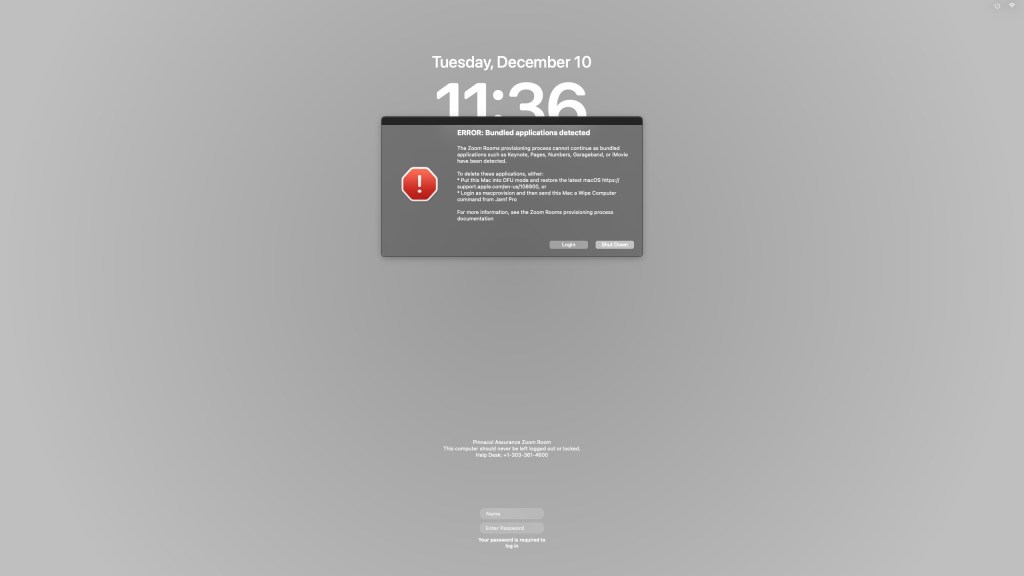
- Checks for bundled applications such as Keynote and displays an error at the login window using jamfHelper1 and exits
- Displays a full screen window using jamfHelper stating the zoomrooms user account is being created
- Configures the Logitech K400+ keyboard to suppress Keyboard Setup Assistant
- Creates a non-admin user named zoomrooms, with real name “Zoom Rooms”, and a picture from the branding package
- Enables Dark Mode for the zoomrooms user
- Mutes the startup chime
- Creates a launch daemon that will kickstart part B of the provisioning process after restart
The launch daemon waits for connectivity to Jamf Pro and then calls a Jamf Pro custom policy trigger - Deletes the launch agent used to display jamfHelper at the login window
- Restarts the computer

Provisioning Part B
After restart, one must log in manually as zoomrooms. This escrows a Bootstrap Token to Jamf Pro. With zoomrooms having a Secure Token and Jamf Pro having a Bootstrap Token, software updates can either be installed locally or sent from the Jamf Pro instance. Jamf Pro can send a wipe command and have it function as Erase All Content and Settings. This is especially useful as local EACS can only be run by an admin user with a Secure Token.
The launch daemon created above in step 7 will already be running. It calls a custom Jamf policy trigger. The policy has two payloads:
- A script that:
- boots out the Jamf policy check-in
- waits for a Dock process
- waits for Setup Assistant to exit
- Installs Jamf Setup Manager
Jamf Setup Manager
Here we take advantage of Jamf Setup Manager’s ability to run during user-initiated enrollment. It is configured by a configuration profile scoped to the ALL- Zoom Rooms group as follows:
- Icon is a Zoom Rooms icon2
- The title and message convey that this is a Zoom Rooms install
- Background is the default wallpaper
- Accent color is the “light” corporate color (because the JSM window is dark)
- Final action is the default (continue) and final countdown is 5 seconds
- User entry prompts for an asset tag and a room name. The asset tag must be a number between 10000-99999. The room names are pre-populated. More below on how these fields are used.
- Enrollment Actions (source material linked where possible):
- Disables Wi-Fi with the
networksetupcommand - Disables Bluetooth
- Disables Sleep with the
defaultscommand - Default Time Zone and City – Jamf policy – With Auto Advance, the time zone step in Setup Assistant is bypassed, so we run a script instead
- Time Server – Jamf policy – Sets our on-premise time server
- Zoom Rooms Dock – Jamf policy – A script that sets the Dock icons for the zoomrooms user. Will lazily install
dockutil - Enables autologin for the zoomrooms user – Jamf policy
- Here we wait for user data entry
- Computer Name – Jamf policy – The computer naming scheme for these Macs requires more processing than the JSM template allows. We take advantage of the JSM 1.1 feature where the values from user entry are written to a file. Spaces are stripped from the room name and it’s combined with a prefix and the asset tag. The computer name is set, but the inventory of it can wait until the finishing steps.
- Wait for /Library/Managed Preferences/net.glencode.Particulars.plist – Wait for this file to exist to configure Particulars. The room must be set before the configuration profile is deployed.
- Particulars – Jamf policy – This policy also includes installing SF Mono and kickstarting the launch agent
- Wait for /Library/Managed Preferences/com.crowdstrike.falcon.plist – Wait for this file to exist as proof that the CrowdStrike Falcon configuration profile has been installed
- CrowdStrike Falcon N-2 – Jamf policy
- Ivanti Endpoint Management – Jamf policy – All of our computers and servers are inventoried by a common system
- Zoom Rooms – Jamf policy – Installs Zoom Rooms and adds the app icon to the Dock
- Clean up – Deletes the launch daemon that kicked off this process with the
rmcommand
- Disables Wi-Fi with the
Process
By plugging this computer into Ethernet and bootstrapping it as described above, enrollment into Jamf Pro occurs automatically. When that completes, the first policy runs and creates the Zoom Rooms user. After the restart and a manual log-in of the Zoom Rooms user, Jamf Setup Manager kicks off and prompts for an asset tag and a room while the initial enrollment actions run. The second set of actions run after data entry. Jamf Setup Manager exits automatically.
Next Steps
When JSM exits, Zoom Rooms has already requested screen sharing permission. We have allowed a non-admin user to approve that, so the Zoom Rooms user can enable that in System Settings. Zoom Rooms then completes its launch and can be paired with a Zoom Rooms controller.
Discussion
After I wrote the first draft of this post, I found didn’t love the process and wasn’t sure if I’d even publish this. I went back and found I could simplify the process further. That said, the complexity of this process stems from the requirements already discussed: actions that must be or are best executed before a user logs in, a manual log in step, and actions that must be executed after/while a certain user is logged in. But my discomfort doesn’t stem from the complexity directly. It stems from a feeling that the implementation of this process is compromised. Perhaps the process design inherits too much from the swiftDialog-based process that proceeded it. The updated process shows progress using one tool (jamfHelper) before login, and another (Jamf Setup Manager) after login. But as far as I know, no Mac provisioning tools maintain state through a restart, able to pickup where they left off. Jamf Setup Manager is designed to run once and prevents subsequent runs as a safety feature. While I could run it more than once by clearing the flag file, and deploying another configuration profile, that would not only be tricky but be fighting the design.
Therefore I am left with the choice of either running a light set of actions before login, and the bulk after, or vice-versa. For now, I leave it as is. When Jamf Setup Manager has an option to restart as the final action, I might be tempted to switch this and run JSM at the login window with most of the actions, followed by a smaller set of actions once the zoomrooms user has logged in.
Up next
In my next (and final) process description, I’ll look at provisioning MacBooks with Jamf Setup Manager.


 macadmin.fraserhess.com
Leave a reply to Fraser Hess Cancel reply